The Transcript tab
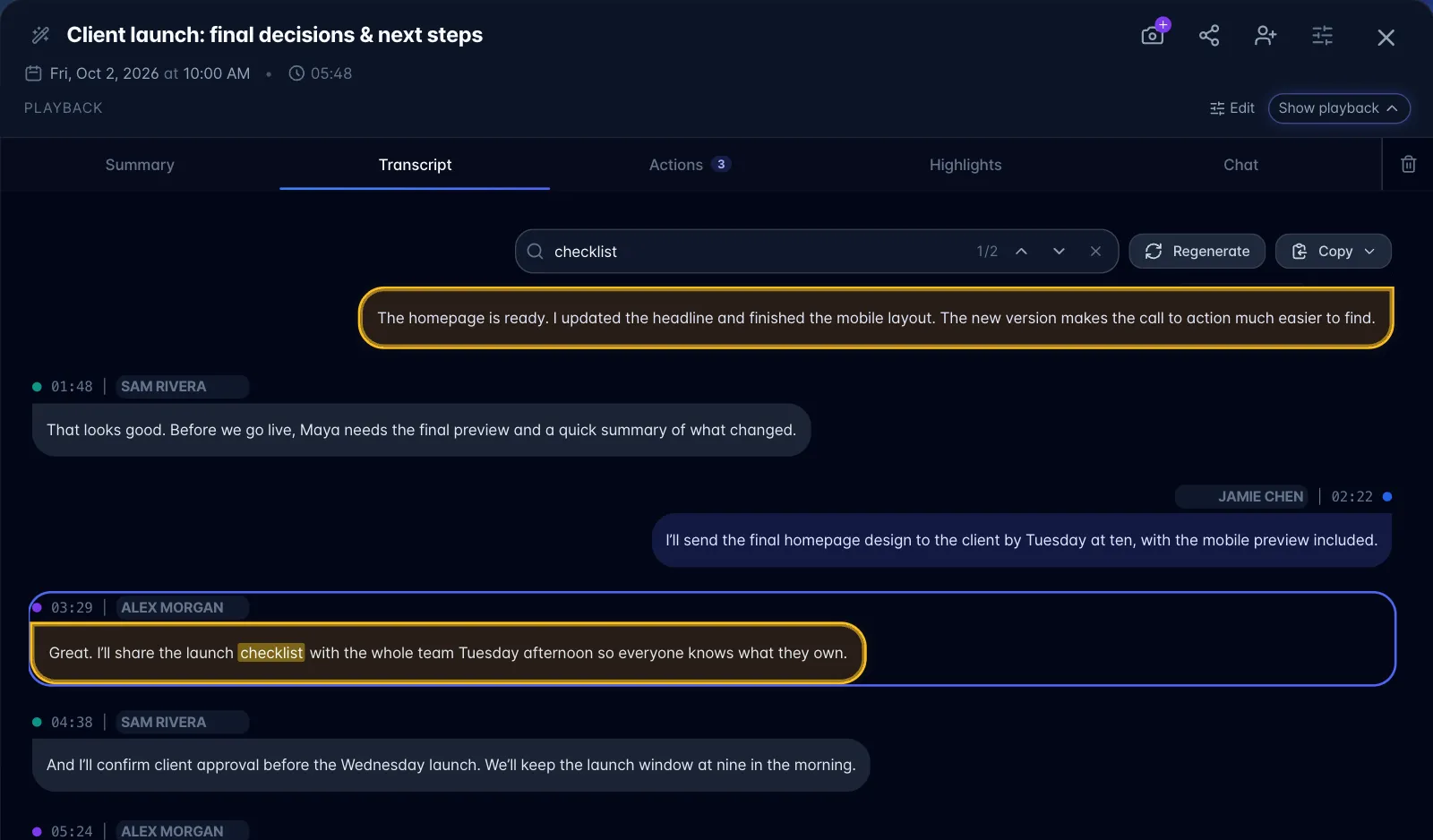
Where. Open any recording → Transcript (the default tab).
On phones, swipe left across the recording to move to the next tab, or right to return to the previous tab. For example, swipe left from Summary to Actions. The content follows your finger and slides into place; reduced-motion settings simplify the animation. Tabs remain tappable. Swipes starting on task cards reveal task controls instead; playback controls, text fields, and other interactive controls keep their own gestures.
Hide playback has an up arrow; Show playback has a down arrow.
Video playback. Use Play, the speaker control, and the seek bar beside the transcript. If a video in your Library stops loading, choose Retry to request a fresh playback link. If your browser requires it, tap Play again. For silent playback, check the speaker control, its volume slider, and your device or browser-tab sound setting. Shared recordings use the same playback controls as your own recordings.
What's on it.
- Search expands in place in the transcript toolbar. On mobile it replaces Regenerate and Copy until you choose Close search (X); on desktop those controls stay beside it. Matches are highlighted in yellow; use the previous/next arrows or Enter / Shift+Enter to move between them. The search toolbar stays at the top of the transcript as you scroll.
- After Manage Speakers scrolls out of view, a floating Search transcript magnifying glass appears at the top right. It returns to the top of the Transcript tab, reveals search, and focuses the input.
- For audio recordings, scrolling down folds the playback controls away and adds a subtle glow to Show playback. Playback continues. Scrolling back up reopens them as soon as you reach the top of the tab. The search shortcut does not change them. To open them from further down, choose Show playback: you stay where you are, and they stay open until you next scroll back to the top. This works on every tab except Chat. Video playback does not fold when you scroll.
- Speaker timeline. When a recording has two or more speakers, a row of speaker buttons and a colored bar sit under the player. Each speaker has the same color as in Manage Speakers, and the bar shows when each one talks. Select a speaker's button to jump to the next time they speak after the current playback position and play from there. Select a colored block on the bar to play that turn from its start. For audio recordings the timeline is part of the playback controls on every screen size. For video it appears under the player on a computer in the side-by-side layout; it is not shown on phones or in theater mode, where the Manage Speakers cards do the same job.
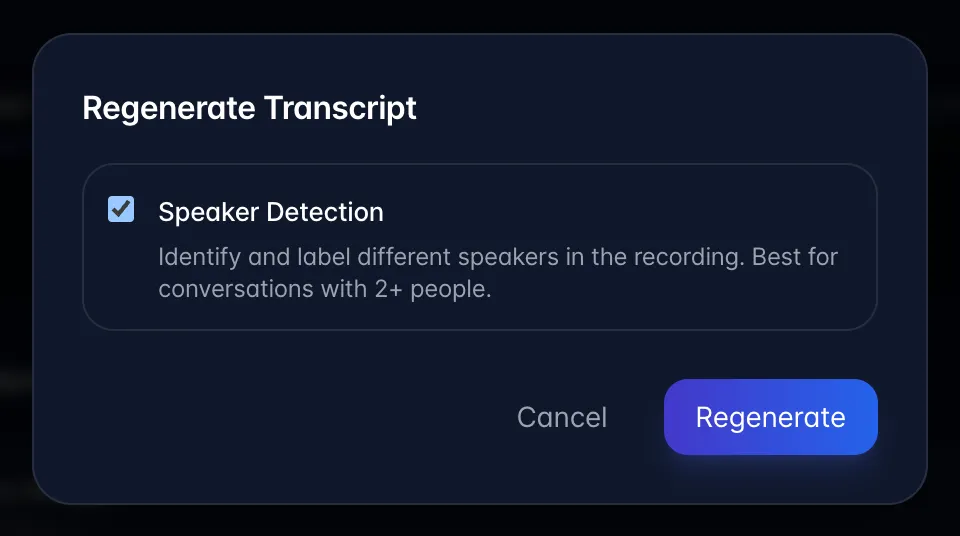
- Regenerate: only the recording owner can start it, with current background choices saved in Profile → AI sharing. It opens a small dialog with one option, a Speaker Detection checkbox ("Identify and label different speakers… Best for conversations with 2+ people"). This is how you rescue a conversation you accidentally recorded as a Personal Note.
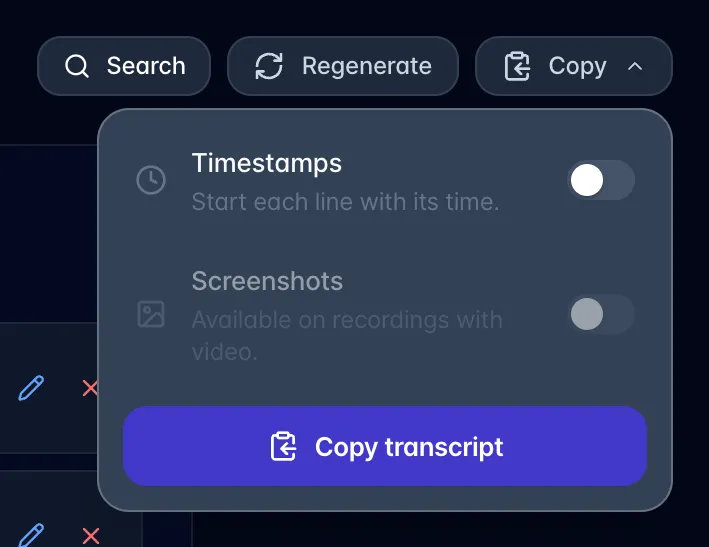
- Copy: opens a small panel with two switches and one button. Your switch choices are remembered on this device. Everything it produces uses your named speakers, not the raw labels, and leaves out anything you have cut.
- Turn Timestamps on to start each line with its time, or leave it off.
- Leave Screenshots off and select Copy transcript to put the text on your clipboard. The button turns green and reads Copied.
- On a recording with video, turn Screenshots on and select Download PDF instead. myScribe looks for moments where someone points at the screen ("right here", "as you can see", "like this", "click on this"), underlines the phrase, and places a screenshot from that moment beside it with a line joining the two. The button shows progress while the PDF is built; select Cancel under it to stop.
The PDF is built on your device and downloaded. Neither the PDF nor the screenshots are stored in myScribe, so build a new one after you rename speakers or cut sections. When a mention shows a screen that already has a screenshot and the pointer is in the same place, it is joined to that screenshot; a pointer that has moved or a changed screen gets a new one. Lines and arrowheads use each speaker's Manage Speakers color. If nobody points at the screen, the PDF holds the transcript only. On recordings without video, Screenshots is unavailable. In the iPhone and Android apps the finished PDF opens the share sheet so you can save or send it. The PDF supports Western European characters; other scripts and emoji are replaced with "?" in the PDF (copied text is unaffected).
- Manage Speakers panel (see Speaker naming: Manage Speakers).
- The transcript itself: one bubble per turn, alternating sides, with the timestamp and a speaker dropdown on each line.
Per-line actions.
- Click any line to jump the player to that moment. The line currently being spoken glows as playback moves.
- Star icon (appears on hover) = Highlight. Highlighted lines turn amber and also show up on the Highlights tab.
- Speaker dropdown on each line reassigns just that line to a different speaker. The last option, "+ New speaker…", prompts for a name and moves only that one line to a brand-new speaker: the fix for when diarization lumped a one-word interjection into the wrong person.
Limits and gotchas.
- Copy is the quickest way to reuse a transcript. Plan & billing → Change Plan → Save my library also exports your own library data as JSON, with media downloaded separately. - Regenerating a transcript deletes and rebuilds every line, which wipes your starred highlights. Speaker names survive (see Speaker naming: Manage Speakers), highlights do not.
- Editing the words of a line is not supported. You can move a line to a different speaker; you cannot correct a mis-transcribed word.
- The bot's live "waiting for transcript" state has its own panel with a real status, not a fake progress bar.