Moving around on mobile
Today and Library leave a small, consistent gap below the top header, including after changing text size or rotating your phone. This applies in the iPhone app and the mobile browser.
Opening Library. An animated scene appears while your Library loads, then transitions into your recordings when loading finishes. It does not add a waiting period. If loading fails, press Try again after checking your connection. Reduce Motion uses a still illustration and an immediate reveal. Background refreshes leave your current Library visible.
Today, Tasks, Library and Calendar retain their view state while you switch between them in the same signed-in session. Previously opened views restore their scroll position. On phones, switching tabs slides and fades in the direction of the selected tab; Reduce Motion removes the sliding animation. Updates to shared data still appear. Ask keeps the current conversation and unsent draft when you close and reopen it. Closing Ask ends any active voice session.
Tap the already-selected Today, Tasks, or Library bottom tab to return to its top. On Tasks, this also returns the Kanban columns to their tops without clearing your filters. Switching to a different tab preserves where you left it.
For long mobile Tasks and Library lists, keyboard and screen-reader navigation can focus or activate Show tasks… or Show recordings… to reveal the next range. Your filters and selections still apply to the whole list.
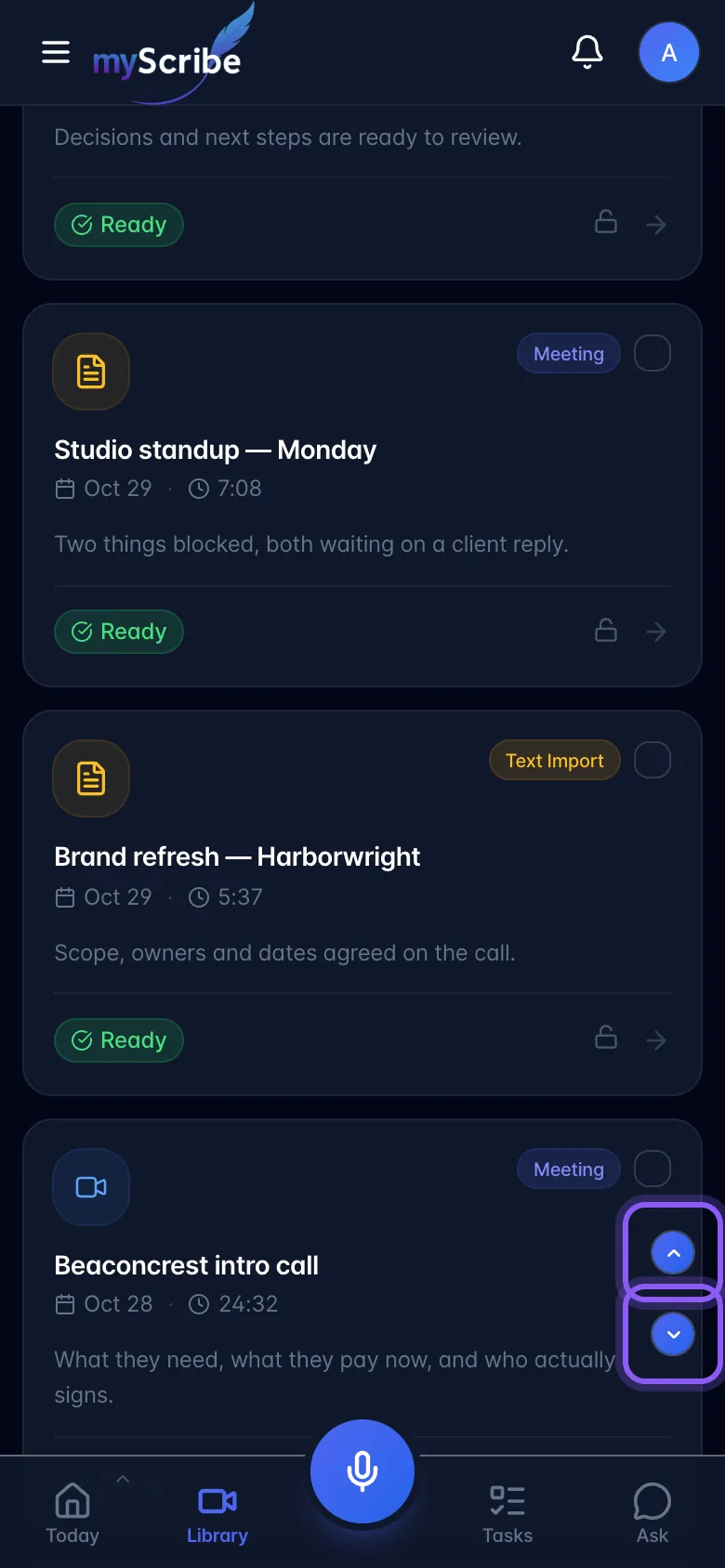
In Library, scroll down to reveal the small up and down arrows on the right above the bottom bar. Tap up to return to the top or down to jump to the end of the currently displayed list. The down arrow hides when the end is already visible. On a computer, the arrows sit in the margin to the left of the list instead: up just under the filters, and down at the bottom of the window.
To close an open recording on mobile, pull down from its header or grab handle and release after a clear downward swipe. The recording continues downward offscreen. A short pull returns it to place.
To close workspace chat (Ask) on a phone, swipe down, swipe right starting near the left edge of the screen, or tap X. A short swipe returns it to place. When the conversation is scrolled, swiping down moves through your messages first, so swipe down on the chat's header or scroll to the top of the conversation. Swipes starting in the message box keep your typing and do nothing else, and swiping down while the keyboard is open does not close the chat. Your draft and conversation are kept.
Tap the menu button to slide the sidebar in. Swipe left (right to left) from anywhere inside the open sidebar, or choose Close menu, to close it. Vertical swipes scroll the menu; tapping a destination opens it. The workspace behind the menu stays still. Both buttons give light haptic feedback on supported phones. You can also swipe right starting at the left edge to reveal the sidebar. When a dismissible modal is open, the same gesture closes the top modal instead. The panel follows your finger; release a short swipe to return it to place. Other modal content keeps its existing scrolling behavior. Pending actions that disable dismissal still need to finish first.