
From meeting to task list: the Actions tab
Where. Open a recording and choose Actions.
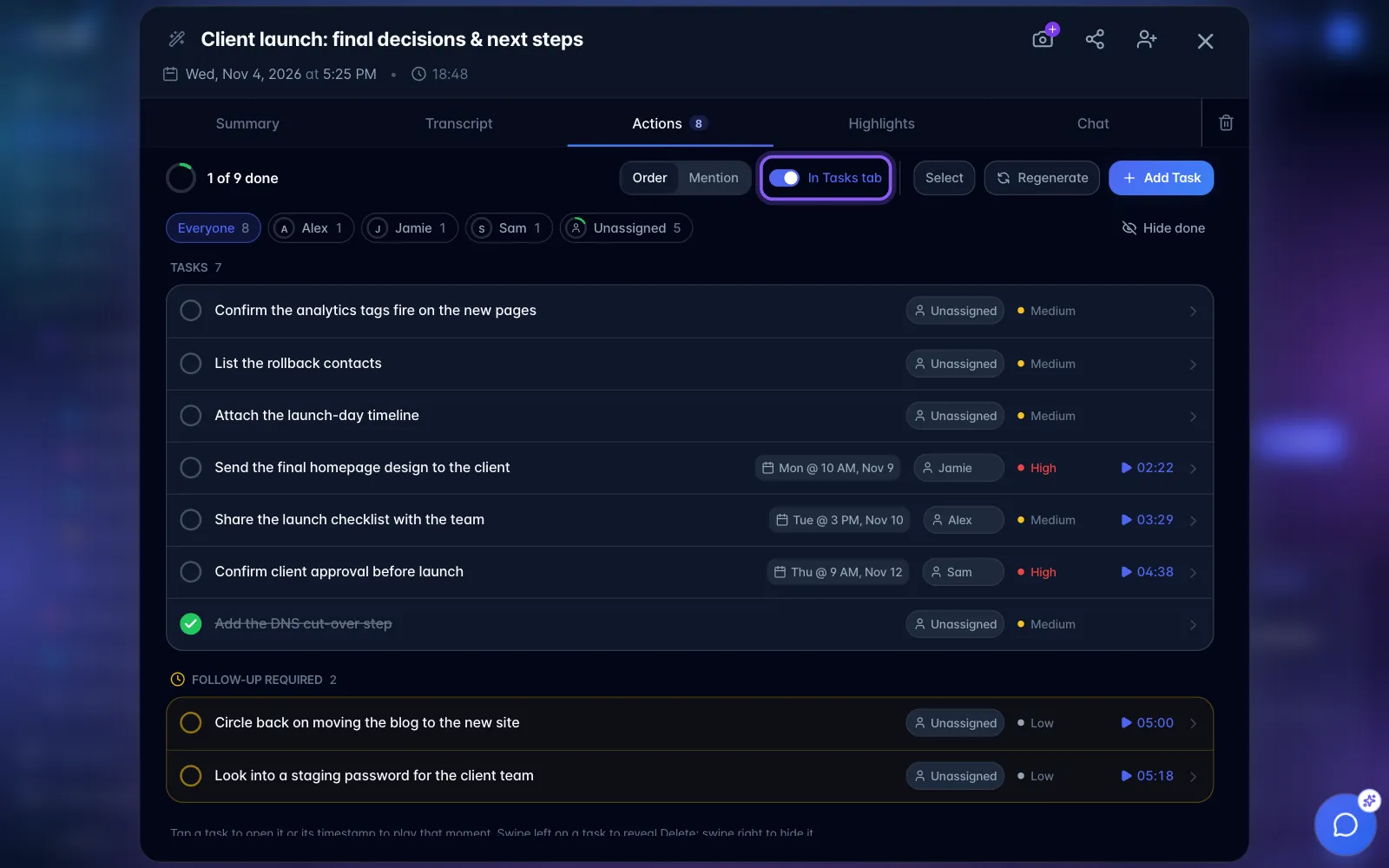
- Wait for transcription and processing to finish, then review the suggested tasks.
- Check each title, assignee, priority, and due date. Select a task's time (the play icon) to hear the commitment in context. Tasks you add by hand have no time to play.
- Keep the useful tasks, edit unclear ones, and delete suggestions you do not need. Named people can be assignees without having a myScribe account; link a person to a teammate when that teammate should own the work.
- Use In Tasks tab when you want the recording's actions included in the main task views. Hidden from Tasks means they remain on the recording instead.
- Add the recording to a project in Library. With In Tasks tab enabled, its existing and future tasks also appear in every linked project, even if a task has a different direct project assignment. Add dates to tasks you want on Calendar.
The bar above the list. The ring and count show how many tasks are done. Next to them are Order and Mention sorting, the In Tasks tab switch, Select, Regenerate (Suggest tasks in a photo session), and Add Task. On phones, Regenerate is a circular arrow icon. The bar stays in view as you scroll.
See one person's tasks. When more than one person has tasks, their names appear under the bar. Select a name to show only that person's tasks. The number beside each name is how many are still open, and its ring shows how far that person has got. Select the name again or choose Everyone to clear it. Hide done appears once a task is finished, and changes to Show with the number of finished tasks.
Act on several tasks. Choose Select, then tick tasks or use Select All to reach Reassign, Project, Complete, and Delete. Select All picks only the tasks on screen, so filter first to act on one person's tasks. Changing a filter clears the selection.
Unassign someone. Select the ✕ on a task's assignee chip. On a computer, the ✕ appears when you point at that task.
Delete an individual action. On a recording you own, swipe left on a task to replace its open arrow with a red Delete task button. Tap it, review the task, then choose Delete task or Cancel. Swiping alone never deletes anything. Swipe right or tap the task to hide the delete control. Keyboard users can focus the task and press Left Arrow to reveal it, Right Arrow or Escape to hide it, and Enter to open the task. Shared recordings do not offer this owner-only swipe control.
The confirmation offers Don't ask again for individual recording tasks on this browser/device and signed-in account. That choice is saved only after a successful deletion. Cancel, Escape, or tapping outside the confirmation keeps the task and saves no preference. Bulk deletion still asks separately. The recording and transcript remain saved when you delete an individual task.
Meeting recordings normally generate actions after transcription. URL imports offer Generate action items, off by default, and YouTube actions start hidden from Tasks. Photo sessions offer task suggestions on demand. An empty Actions tab can mean processing is still running, action generation was not requested, or no commitments were found.
Use the available generate or regenerate controls when you need another pass; review the results rather than assuming every suggestion belongs on your task board.