
Calendar
What it is: your dated tasks and connected Google Calendar / Outlook meetings together on a month or week grid. Tasks support drag-to-reschedule.
Where: Calendar in the desktop sidebar, or the Calendar icon on the Tasks page on phones. On phones the Tasks tab reopens whichever you used last: the Board, the List, or the Calendar. Choose the list icon in the Calendar's view buttons to go back to your task list.
Controls: ‹ › to page, Today to jump back, Month / Week buttons at the right, and Search / All Status / All Priority / All Projects / Hide AI tasks filters. There is also a New Task button with the same template ▾. Month or Week is remembered on this device.
Hide AI tasks hides tasks your AI created (for example from Scribe chat or the AI assistant) and tasks handed to an AI agent. Action items pulled from a meeting for a person stay visible. It is off by default, it applies to the month, week and day sheet, and the choice is remembered on this device. The other calendar filters reset when you reload.
On phones, the top of the Calendar has a search field (Search tasks and events, with an x to clear it) and a Filters button. A number on the button shows how many filters are on. Tap Filters to open a sheet from the bottom with Hide AI tasks, Status (All, Pending, Completed), Priority (All, High, Medium, Low) and Project. Changes apply right away; the button at the bottom shows how many tasks match (Show N tasks) and closes the sheet. Reset clears all of them. Close the sheet by tapping outside it, dragging it down, or pressing Esc. Each filter that is on shows as a chip at the top of the sheet (for example AI tasks hidden or Priority: High); tap a chip's x to remove it, or Clear all. Show N tasks counts only the tasks in the month or week on screen.
Month view
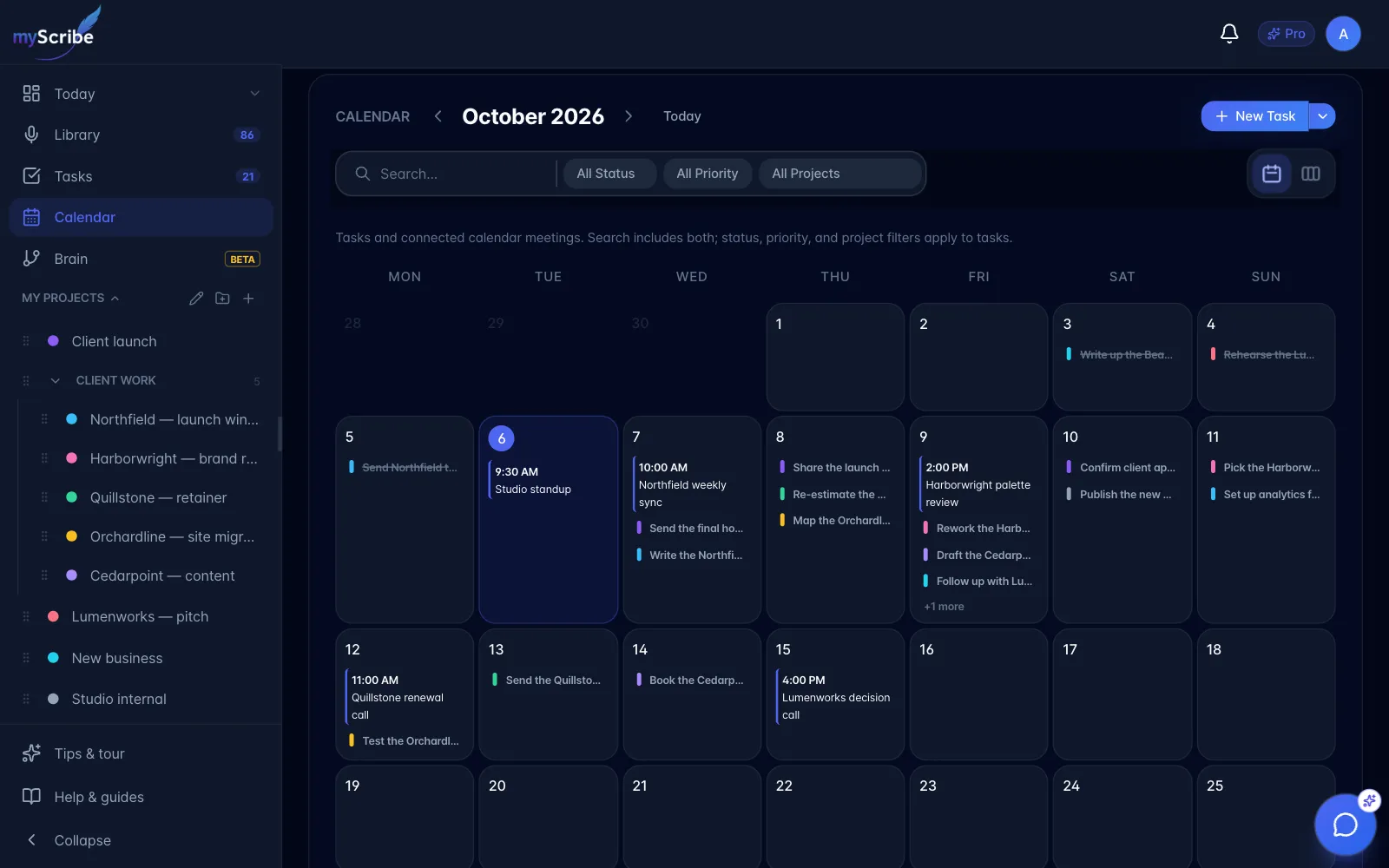
On a computer, each day cell shows up to three tasks and two meetings, then "+N more". Click a day (or the +N) to open the day sheet.
On phones and tablets, the month fills the screen between the top bar and the tab bar, and the page doesn't scroll. The month name, ‹ ›, and Today stay at the top. Days sit in a full-width grid with the date in each day's top-right corner; today's date is filled in. Each meeting or task is a one-line chip: meetings have an outline, and a task's left edge takes its project's color (red for high priority with no project). Completed tasks are faded and listed after open ones. Each day shows as many chips as fit, then a small "+N more". Tap a chip to open that task, or tap the day (or "+N more") to open the day sheet.
- Search, Filters, views and New Task sit just above the month, out of sight. Tap the month name, or pull the calendar down, to show them; push it back up to return to the full month. A dot beside the month name means a filter is on.
- Zoom: pinch apart on the month to zoom in. Day cells grow faster than their text, so chips get wider (more of each title shows) and more of them fit per day. Drag with one finger to move around. Choose Fit month, or pinch back in, to see the whole month again.
- Change month: swipe left or right on the month while it isn't zoomed, or use ‹ ›. The days move with your finger and the next or previous month slides in beside them, dimmed, a little smaller and with its name written large across it, so you can tell it apart. It brightens and glides into place when you let go, and the month name at the top slides along with it (‹ › and Today glide the same way). A short swipe slides back. While you swipe sideways the page doesn't scroll up or down.
Week view
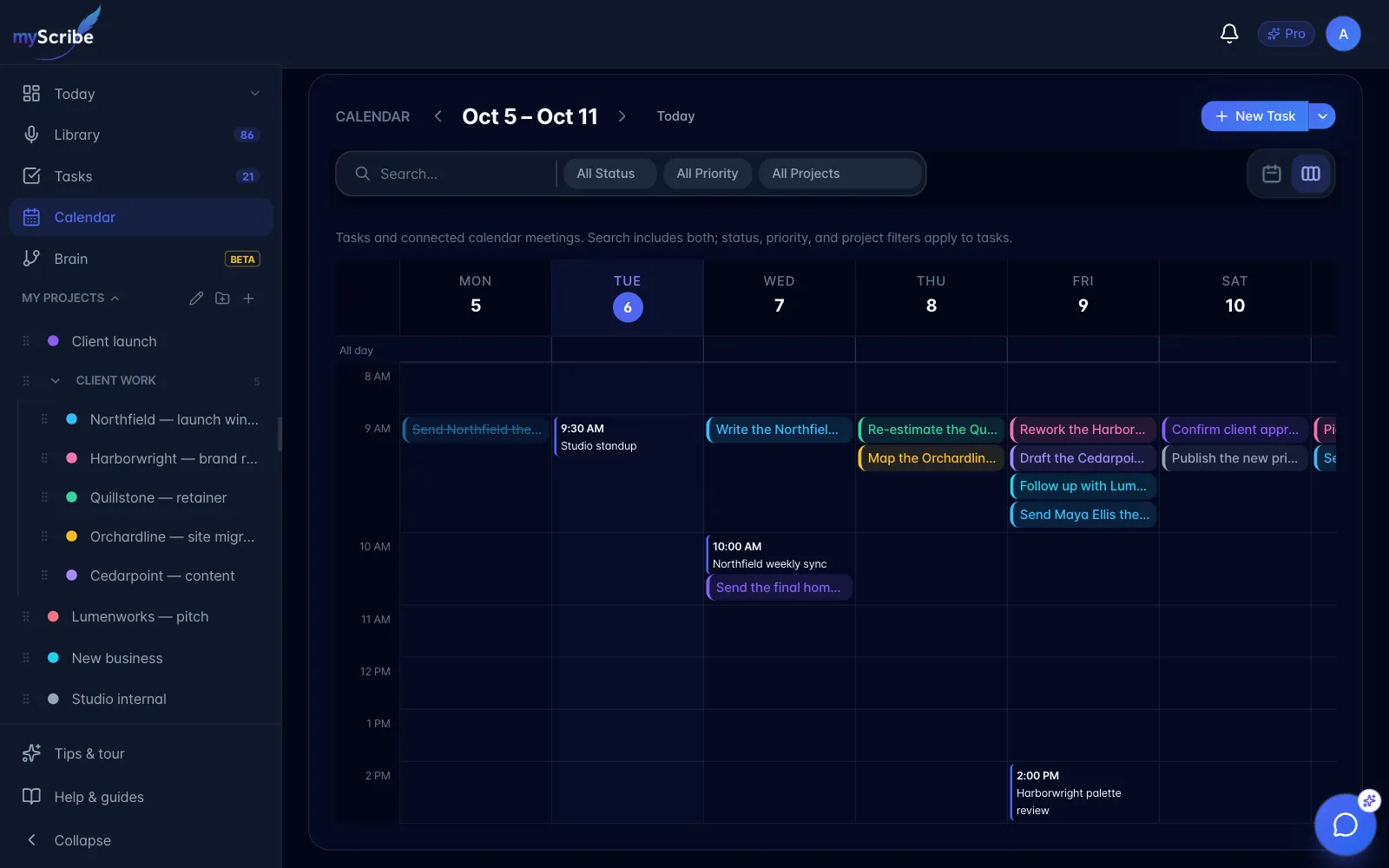
A time grid normally spans 8 am to 8 pm, expanding for earlier or later items in the displayed week. All-day meetings have their own row. Tasks with no time are parked at 9 am. Column widths are draggable on desktop.
Drag to reschedule
Drag a task chip onto another day (month view) to change its due date; drag onto an hour cell (week view) to set both the date and the hour. The change saves immediately.
Drag-and-drop is desktop only: on touch devices the chips are deliberately not draggable, because dragging fought with scrolling. Mobile users reschedule by opening the task.
Day sheet
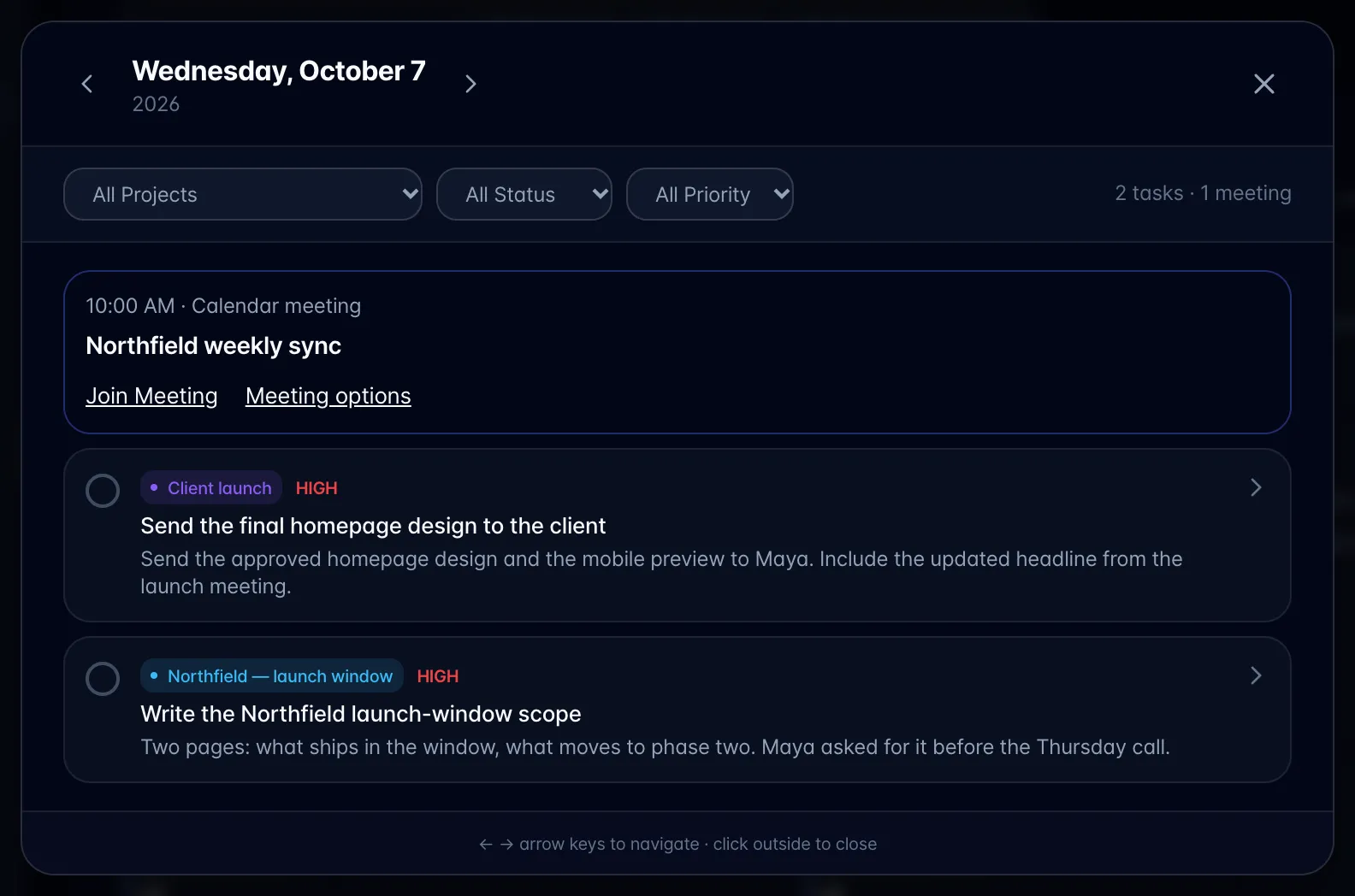
Opens on click or tap. Meetings show their start time and, where available, Join Meeting and Meeting options. Meeting options opens the existing cancel, reschedule, or remove flow; those actions still require confirmation. The sheet has its own Project / Status / Priority filters and task/meeting counts, day arrows (← → on the keyboard too), tick-to-complete in place, and Esc to close. On mobile you dismiss it by swiping down from the top or swiping in from the left edge.
Gotchas
- Tasks need a due date to appear. Connected calendar meetings use their event dates, even when they have no task. Cancelled or removed meetings stay hidden, as in Today.
- Search includes meeting titles, descriptions, and locations. Status, priority, project and Hide AI tasks apply only to tasks. Meetings remain visible.
- The filters here are separate from the Tasks page filters.
- Timed meetings use your device timezone. All-day meetings keep their calendar dates, with the end date excluded. Tasks keep their saved due date. Meetings spanning midnight appear on each affected day.