
Projects, folders and companies
Projects
What: a named, coloured bucket for tasks and recordings. Where: the sidebar list; + Create New Project inside the New Task modal and the task detail sheet; the sidebar's new-project control.
Add a recording and its tasks. Select recordings in Library, choose the project action, then use Add Recordings to Project to pick or create a project. Recordings can be linked before they have tasks. Open a recording's Actions tab and enable In Tasks tab to include its actions in each linked project. Existing and newly generated tasks appear automatically in the project dashboard and the project filters in Tasks and Calendar. Existing direct task assignments are kept, and each task appears once per view. Hidden from Tasks keeps actions on the recording, including when it is linked to a project.
Clicking a project in the sidebar opens its dashboard: its tasks, its recordings, buttons to record / join a meeting / rant / add a task straight into that project, inline rename (click the title), a select-mode for removing tasks, and Subscribe in Calendar.
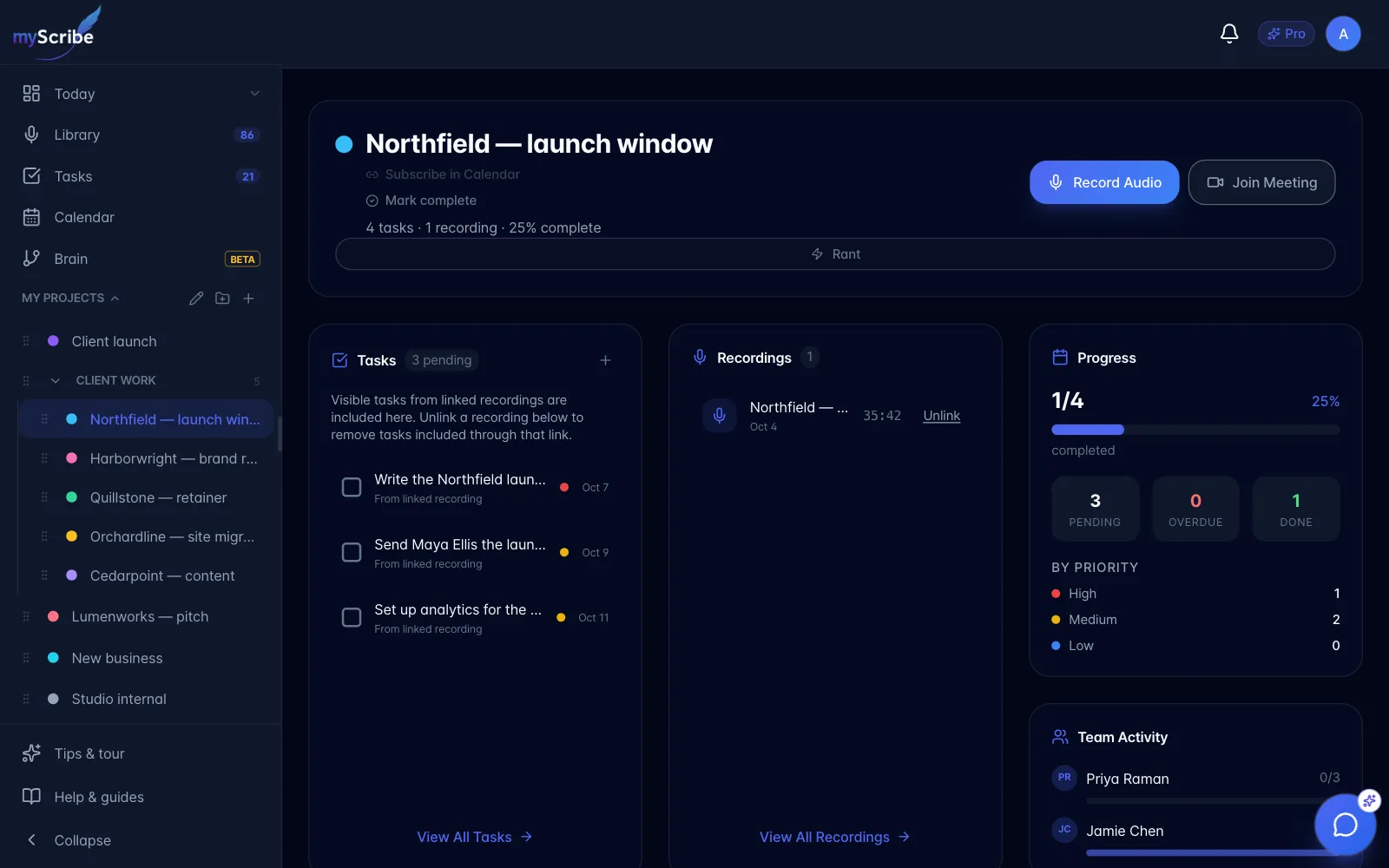
- Mark a project complete (from the dashboard or the sidebar context menu). Tasks included only in completed projects leave the general Today and Tasks lists. They remain available inside a project, when filtering Tasks to that project, and in Calendar. A task also included in an active project stays in the general lists. Reopening a project restores its tasks there.
Remove tasks from project unfiles directly assigned tasks that are not also included through a linked recording. Nothing is deleted. Tasks marked From linked recording follow that recording link. Use Unlink beside the recording on the project dashboard to remove the link; tasks assigned directly to the project stay there. The recording and its tasks remain saved.
- Subscribe in Calendar (the Calendar chip on a phone) opens a popup. Choose Copy calendar link to copy a private, unguessable link to a live
.icsfeed of that project's directly assigned dated tasks, as all-day events, with a coloured dot for priority and a tick for done ones. Keep the link private because possession grants access to the feed. In the same popup, Reset link asks for confirmation before replacing the URL. Confirming immediately stops the old URL from updating; a calendar app may retain events it downloaded earlier until that subscription is removed.
Team projects
What: a project that lives in a team instead of your Personal area. Everyone in that team sees it in their sidebar, marked with a small people icon, and can add tasks and recordings to it. A project lives in one place at a time: Personal, or one team.
Create a project in a team. In the sidebar's new-project box, type the name, then change Personal (only you) to Team: <team name> before choosing Create. The choice only appears when you belong to a team that lets you add projects.
Move an existing project into a team.
- Right-click (long-press on a phone) the project in the sidebar and choose Move to team, or open the project and choose Move to team under its name.
- Under Move to, pick the team.
- Under Also share these recordings, tick the recordings the team should see. Nothing is ticked for you. A ticked recording shows its transcript, summary and tasks to the whole team.
- Choose Move to <team name>.
What moves with it:
- Tasks added directly to the project move into the team, with their sub-tasks. You can make any of your own private again afterwards.
- Tasks that came from a recording follow that recording. Teammates see them only when the recording is shared with the team.
- The project's folder and company link are cleared, because folders and companies belong to one area. Team projects sit outside folders.
- A project connected to your AI agent cannot be moved. Unlink the agent first.
Teammates get a notification that the project was added.
Change what the team sees later. Open the project and choose Shared with <team name> · Sharing. The Sharing window lists every recording and task in the project:
- Recordings. Turn the switch on to share one of your recordings with the team, or off to make it only yours again. Recordings marked Personal must have Personal turned off first. Recordings a teammate shared, and recordings made inside the team, show who shared them and have no switch.
- Tasks. Turn the switch off on a task you added to make it Only you; turn it on to share it again. Its sub-tasks follow. Tasks teammates added show who added them. Tasks from a recording show Follows its recording.
New tasks added to a team project are shared with the team. Open Sharing to make one private.
Invite someone by email. Team owners and admins can bring a person straight into a project, whether or not they have a myScribe account:
- Open the project and choose Shared with <team name> · Sharing.
- Under Invite someone to this project, type their email address and choose Send invite.
They get an email saying you shared the project with them. Its button opens a page with the project's name, team and counts of open tasks and shared recordings at the top, a blurred preview of the project page behind, and a sign-up card in front. Someone without an account creates a free one on that card; someone with an account signs in there. Either way they must use the address the invitation was sent to. Once they are in, the page opens into the project without reloading. A new account confirms its email first: the link in that confirmation email opens the project.
Joining is free on every plan, including Free. Only creating a team needs a paid plan. A project or recording someone else shared with you never counts toward your own monthly recording minutes or storage; only what you record yourself does.
Accepting makes them a member of the team, so they see the team's other projects and shared recordings too. The invitation is good for 7 days and appears under Pending Invitations in Manage Team, where you can resend or cancel it. Inviting the same address again replaces the earlier invitation.
Move it back. In Sharing, choose Move project, pick Personal (only you) and choose Move to Personal. The team loses the project. Its direct tasks come with it, including ones teammates added. Recordings you shared with the team stay shared until you turn them off from each recording's Share.
On a phone. The project page shows Record, Meeting and Rant as three buttons under the project's name and progress bar. Below them are chips for the project's own controls: Shared with <team name> (opens Sharing) or Move to team, Calendar (the calendar subscription link) and Mark complete.
Who can do what. Everyone in the team can see a team project and add to it. By default members can also create and edit team projects, and delete or move only the ones they created; admins and the owner can do all four with any project. The team owner can change this for each person: see Managing a team, roles, and inviting members. If an action is missing from the menu, the owner has not allowed it for you.
Deleting a team project removes it for everyone in the team. Delete project, tasks, and my recordings deletes the project, its tasks and the recordings in it that are yours; teammates' recordings are kept. Delete project only keeps the recordings and tasks and just removes the project.
Folders
What: a group of projects in the sidebar. A folder can hold projects and one level of sub-folders: you cannot nest deeper than that.
Where: sidebar → new-folder control; drag a project onto a folder header to file it; right-click / long-press a folder for rename, delete and complete.
- Completing a folder completes the whole group: every project inside it (and inside its sub-folders) drops out of the task surfaces at once.
- Deleting a folder does not delete its projects. They are moved back to ungrouped first.
Companies
What: a client or company attached to a task, project or folder. Companies are shared records, not free text, so "Camino" and "Camino LLC" are the same company.
Where: the Company field in the New Task modal and in a task's Details tab. Type to search; if nothing matches, an Add "<name>" row appears and creates the company.
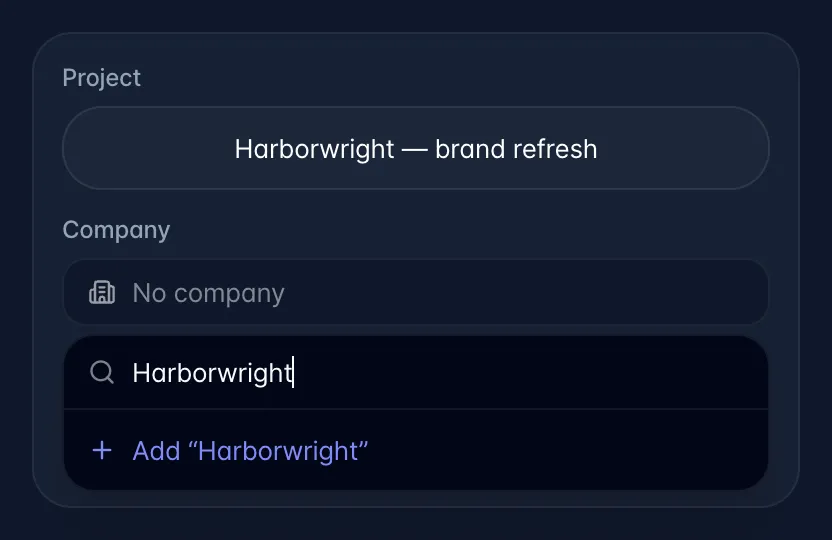
What it actually does: the inheritance chain
task → project → its folder → the highest parent folder → companyWhen myScribe extracts tasks from a meeting, it walks that chain: the task takes the project's company; if the project has none, it takes the company linked to the project's top-level folder; if that folder has no company yet, the folder's name becomes a company. So if you name your top folders after clients ("IACX", "Camino"), meeting tasks get filed to the right client automatically. The resolution is saved the first time it happens, so it stays consistent afterwards.
Gotchas
- Generic folder names are deliberately never turned into companies: personal, archive, archived, old projects, internal, misc, miscellaneous, general, admin, inbox, other, shared, templates, clients, projects, work, completed, done, home.
- Corporate suffixes (LLC, Inc, Corp, Ltd, Co, GmbH, Holdings…) are stripped when matching, so you cannot accidentally create a duplicate company that differs only by suffix.
- A project named
Client: Engagementwill match an existing company from the "Client:" prefix, but that prefix alone is never used to create a new company. - The search box also matches a company's saved aliases and short forms, so typing an acronym usually finds the right record.
- There is no company filter on the Tasks page and no company column anywhere. Today, company is stored and inherited but barely surfaced. Set expectations accordingly.